

The Problem With Complete Or Start Over
Every checkout used to be a hard commitment. Add tickets, add products, finish the sale, or lose your spot in line. Great if you’re decisive. Less great if you’re an admin holding seats for a patron who needs one more day to confirm, or juggling a phone call and a walk-up customer at the same time.
Boxoffice App checkout now has a third option: save it, and come back later.
How Saving A Transaction Works
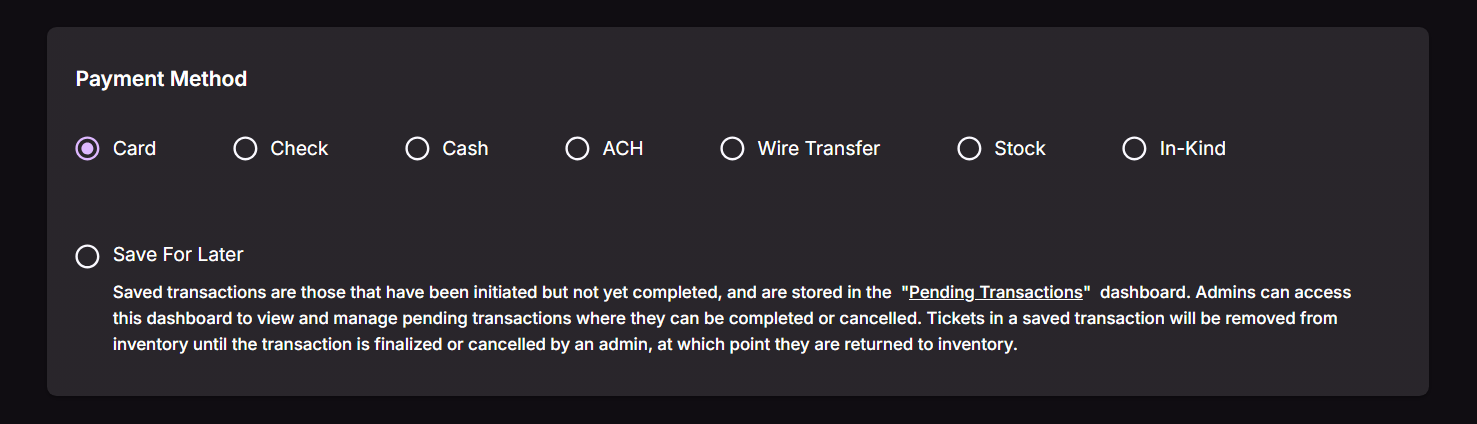
At checkout, select the “Save For Later” payment method instead of completing the sale. The button that normally says “Complete Order” changes to “Save Order,” a small detail that exists specifically so nobody accidentally finishes a transaction they meant to hold.
Once saved, the transaction goes into a pending state. Reserved seats and any inventory-based add-on products are held exactly as if the sale had gone through. That means the seats or inventory come off the board immediately, so nobody else can grab them while you sort things out.
The Pending Transactions Dashboard
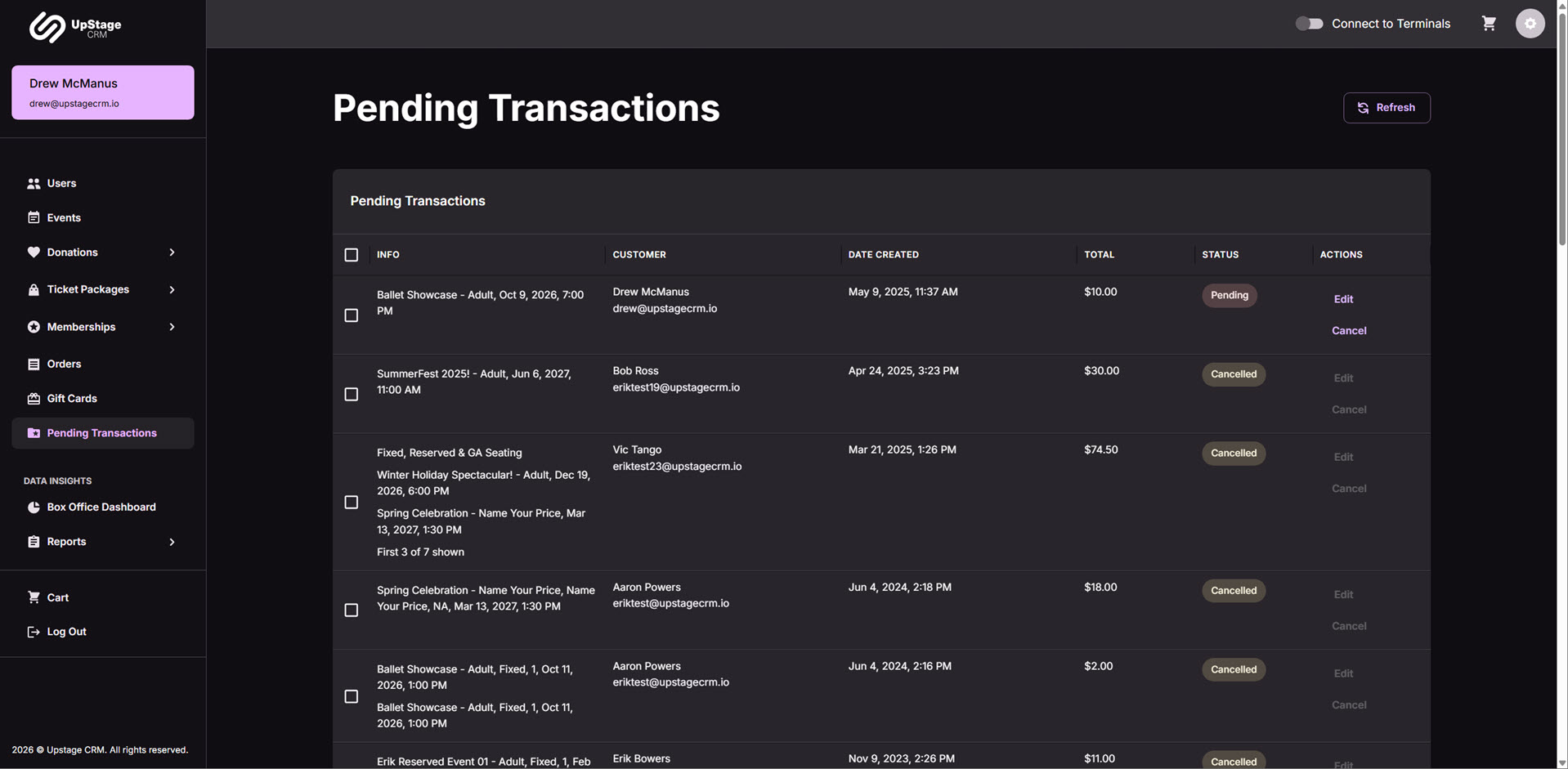
Saved transactions live in a new dashboard inside Boxoffice App, built specifically for this feature. From there, admins can:
- Open a pending transaction to review it
- Edit it, whether that means adding products or removing them
- Complete it, which processes payment, generates tickets, and attaches everything to the user’s account
- Cancel it, which releases any held seats or inventory back into availability
There’s no time limit on how long a transaction can sit pending. Hold it for an hour or a month, your call. The one exception: if a pending transaction includes tickets or add-ons tied to an event, and that event’s date passes before the transaction is completed, it cancels automatically and the inventory returns.
What The Patron Sees
Nothing. That’s intentional. A saved transaction doesn’t generate an email, a notification, or anything in My.App. As far as the patron knows, nothing has happened yet, because from their side, nothing has. The hold exists entirely on the admin side until someone completes it.
Next Steps
If your box office team is still finishing every sale in one uninterrupted sprint, it’s time to see what saving a transaction actually looks like. Book a personalized demo and we’ll walk through it together.